How to add a news article to your divisional website
Login to your divisional website as normal. If you have forgotten how, follow this link.
At the top of the page there is a plus (+) symbol. Hover over it and click post
Give the post a title. Keep it short and to the point, or Google will not pick up the keywords. Check Spelling
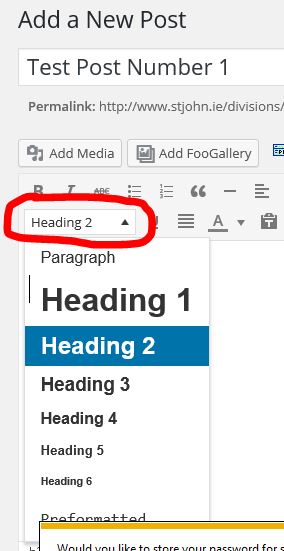
Click the main text box, select Heading 2 from the font style list.
In the main text box, re-type (or copy and paste) the title you have given the post in the title box. Check spelling
Hit return to start a new line, select Paragraph from the font style list above and type your article
We recommend you type your article in Word and use the built-in spellchecker and then copy and paste.
If you take too long to type your article on the website, it may log you out and you will lose your changes, hence why you should use Word to format your documents. Check spelling
***VERY IMPORTANT STEP*** Check spelling!
It’s very important that we present a professional image of the organisation. Good spelling, grammar and appropriate images are what makes the difference on a good website.
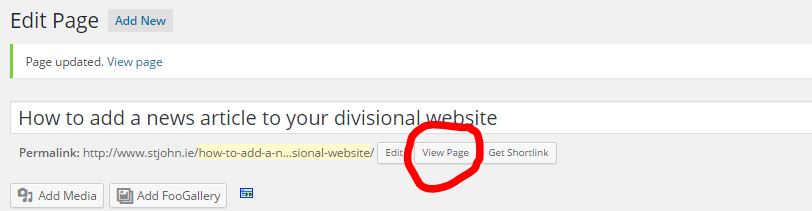
Then, click Publish! Click the “View Page” button under the post title to view the new article you have posted. Copy and paste the link to your Facebook/Twitter to share and generate clicks.
 In the main text box, re-type (or copy and paste) the title you have given the post in the title box. Check spelling